Guides
Send invoices automatically with Shopify's order emails
· 4 min read
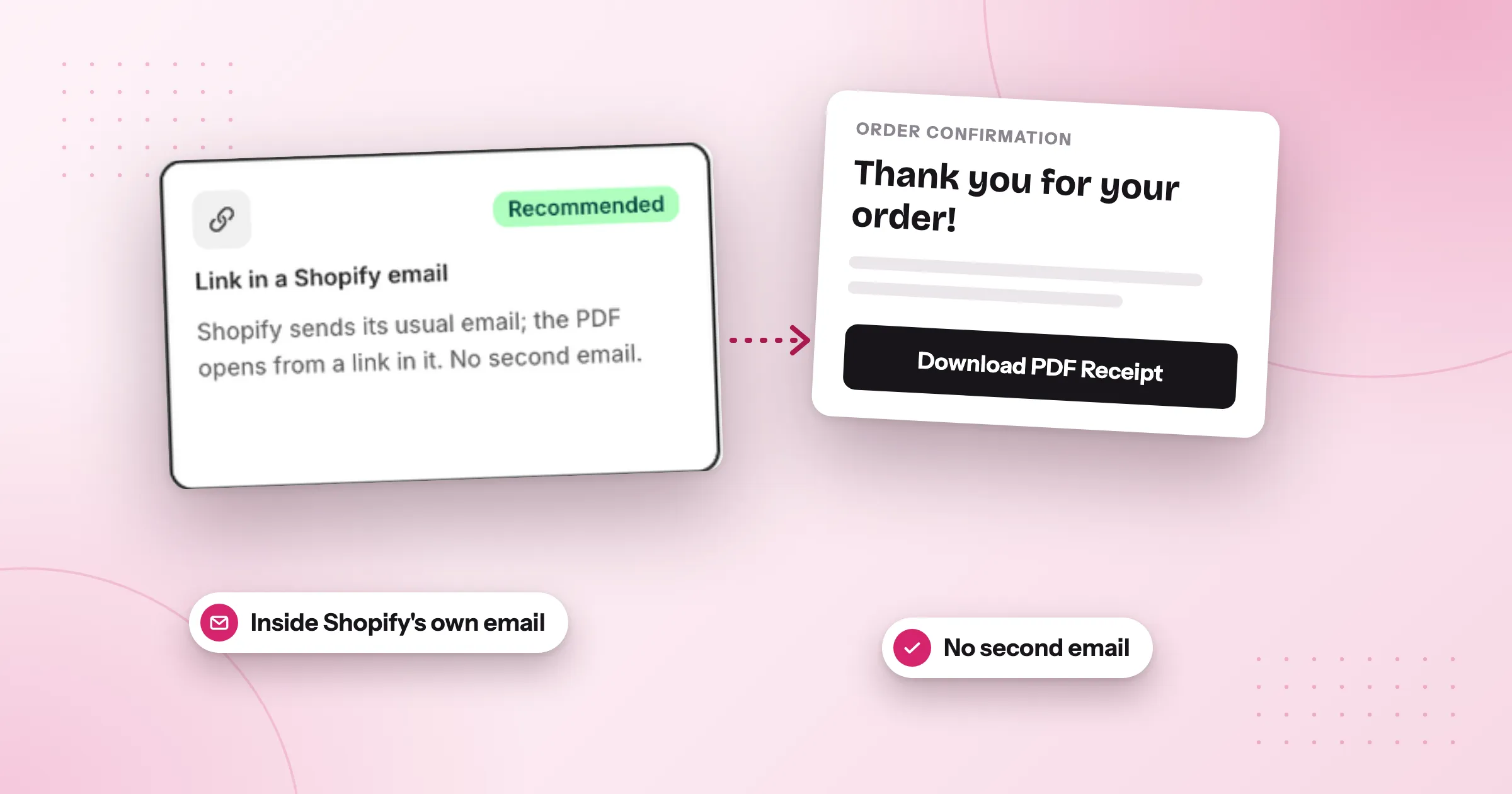
You want every customer to get a PDF invoice without you doing anything per order. Shopify already emails your customer when they place an order, so the simplest way is to put a link to the invoice in that email. With Foliant you paste a short piece of code into Shopify’s Order confirmation once. From then on, every confirmation has a link that opens the customer’s invoice as a PDF. It works on every plan, and the customer doesn’t get a second email.
What Shopify does on its own
Shopify sends a notification email at almost every step of an order: when it’s placed, paid, shipped, refunded or canceled. You edit them in the Shopify admin under Settings › Notifications.
What those emails can’t do is carry a PDF attachment. The order confirmation lists what the customer bought, but it isn’t an invoice your customer can download, file or pass to their accountant. And if the invoice comes in a separate email, your customer gets two emails for the same order. A link inside Shopify’s own email avoids both problems.
Add the link to the order confirmation
You need an invoice template. Every store gets a ready-made Receipt / Invoice template when it installs Foliant, so you can start with that one and change it later.
-
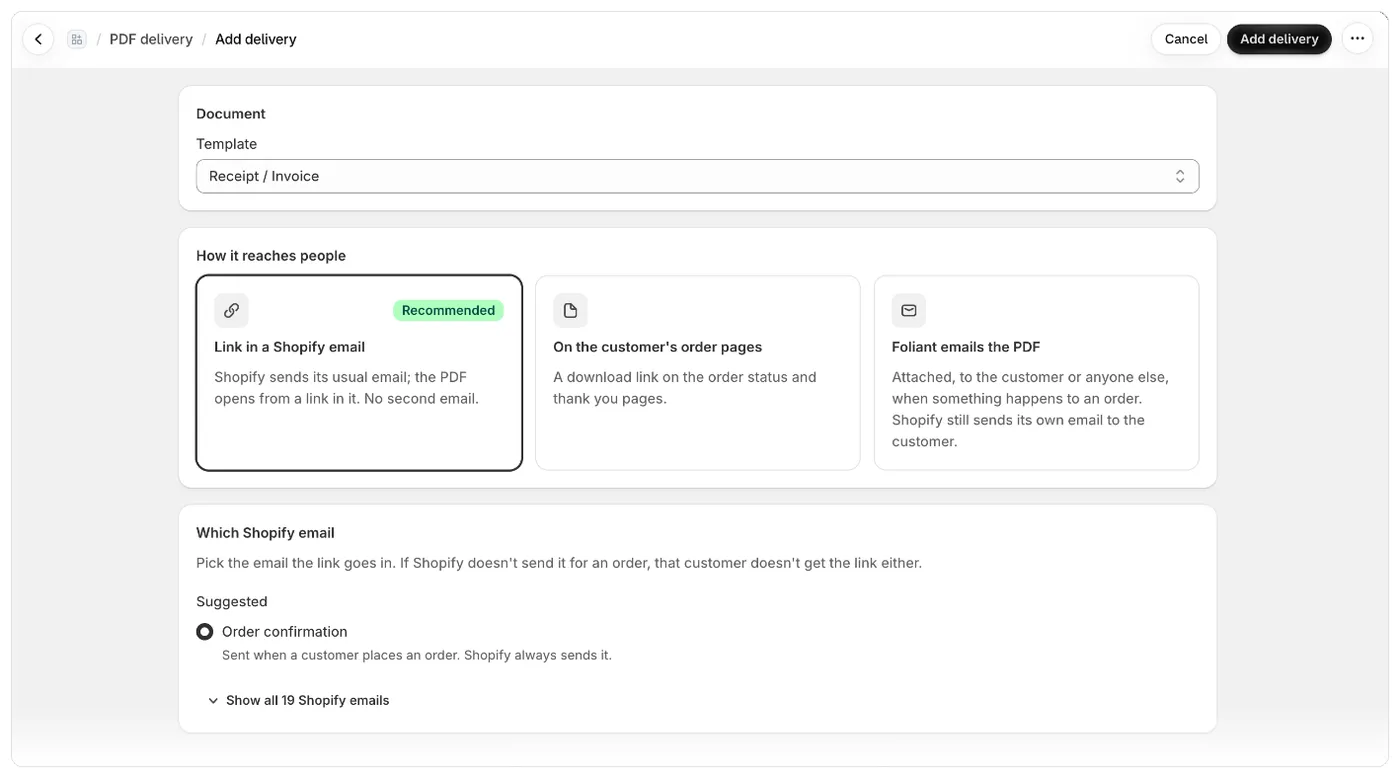
In Foliant, go to Delivery and, on the PDFs tab, select Add delivery.
-
Under Document, choose your invoice as the Template.
-
Under How it reaches people, choose Link in a Shopify email (marked Recommended).
-
Under Which Shopify email, choose Order confirmation. Foliant suggests it for invoices. Shopify sends it for every order, and it can’t be turned off.
-
Select Add delivery. The delivery’s page opens with the install steps.
-
Select Copy code.
-
Select Open Order confirmation. The email opens in the Shopify admin, ready to edit.
-
Paste the code just below the order summary, so the link sits next to the totals, and save the email in Shopify.
-
Back in Foliant, select Done. The delivery shows as Installed.
Place a test order and open the link in the confirmation. After the first download through the link, the delivery shows as Live.
What your customer sees
The order confirmation looks as it always did, with one extra link, for example “Download PDF Receipt”. You can change the words in Link text on the delivery’s page. Copy the code again afterwards and replace the old code in Shopify’s email.
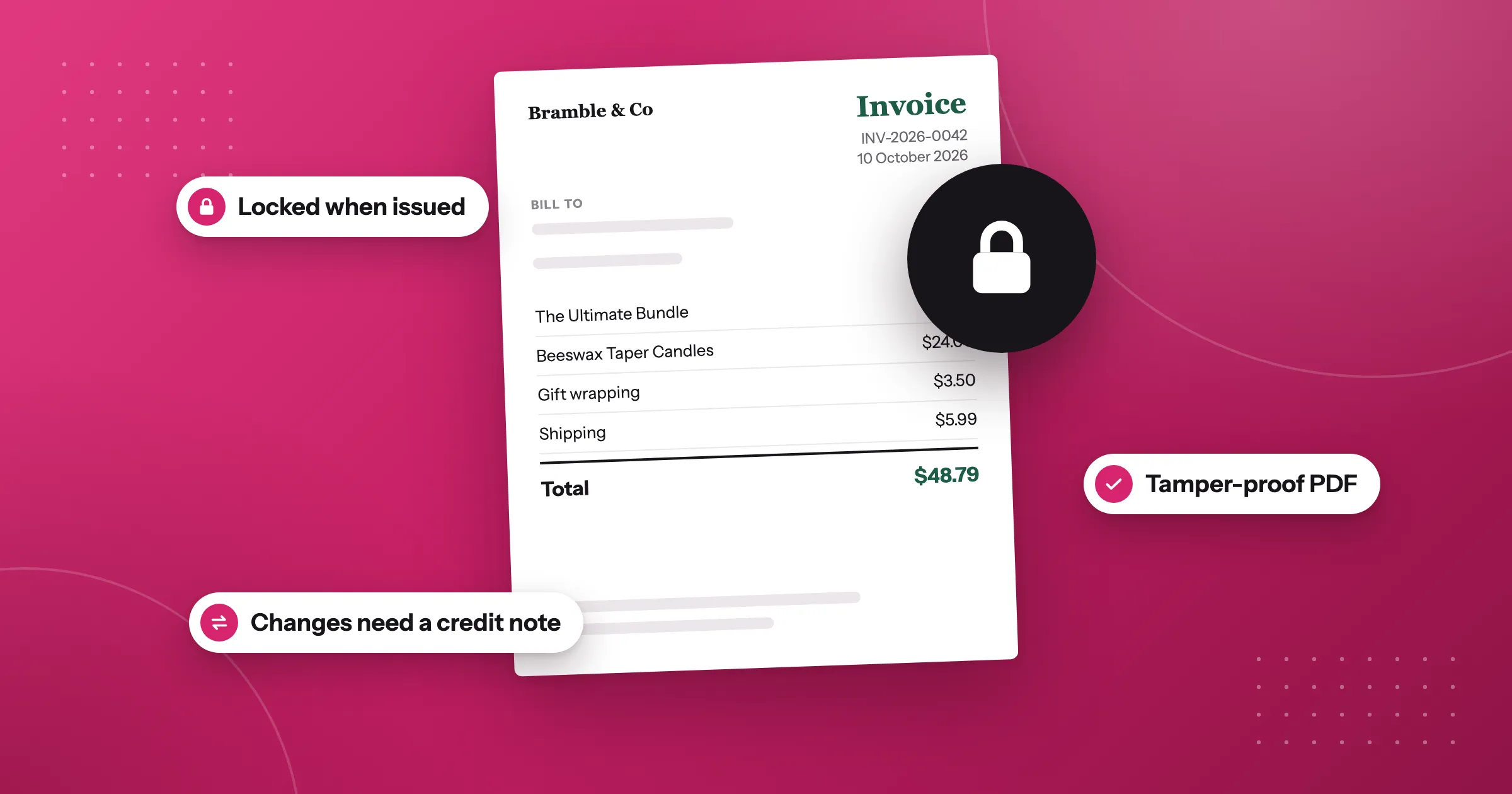
The PDF is made when the link is opened, from your template and the order as it is at that moment. If the order was edited or partly refunded since, the invoice shows that. A locked invoice is the exception: it’s always delivered exactly as it was issued. See How download links work.
Other emails and documents
The same steps work for other documents. Foliant suggests the usual pairs:
- Invoice: Order confirmation
- Credit note: Order refund (the link opens the credit note for that refund)
- Quote: Draft order invoice
- Packing slip and other documents: Shipping confirmation
You can pick any of the other Shopify emails too. See Shopify emails you can add a link to.
When you need the PDF attached
Some customers or accountants want the PDF as an attachment, not a link. For that, choose Foliant emails the PDF when you add the delivery, and pick when it’s sent under Send when. For invoices, Order is paid is usually better than Order is placed: an invoice gets its number when the email is sent, so a cancelled order would leave a voided number.
Foliant can send it to The customer, Your store and up to five Other addresses. If you tick The customer, Foliant warns you that The customer gets two emails and asks you to confirm. See Avoid sending customers two emails.
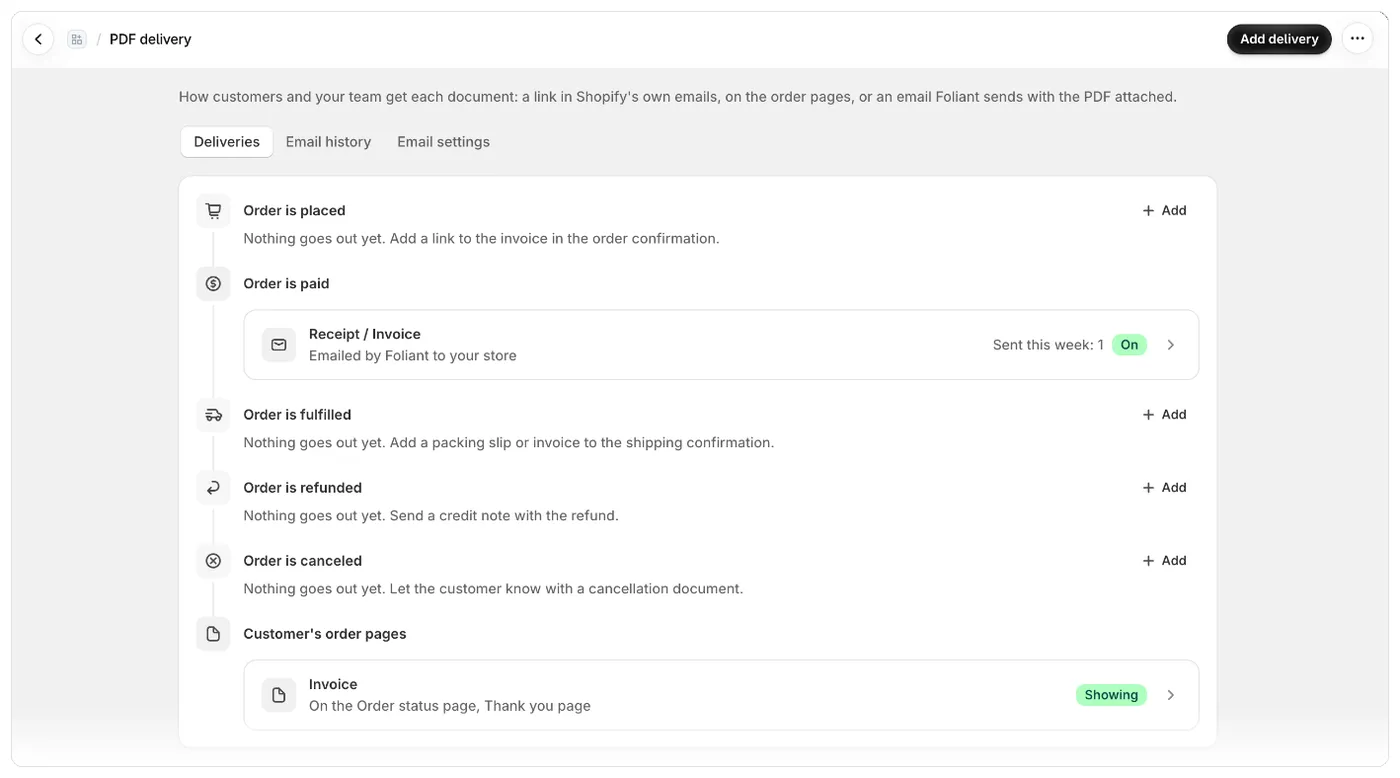
The PDFs tab of Delivery lists every delivery under the moment it goes out, so you can see at a glance what each order sends.
Good to know
- Link in a Shopify email works on every plan. Whether Foliant can email the PDF itself depends on your plan. See pricing.
- With numbering on, an invoice gets its number the first time it’s downloaded, printed, exported or emailed, and keeps it. A customer opening the link can be that first time. See When a document gets its number.
- Removing the delivery in Foliant doesn’t take the code out of Shopify’s email. Remove it there too.
The full steps, with the link text and every status, are in the help centre: Add a download link to Shopify’s emails.
Questions
Can Shopify attach a PDF invoice to the order confirmation email?
No. Shopify's notification emails can't carry a PDF attachment. With Foliant you add a link to the invoice in the order confirmation instead, and the PDF opens when the customer clicks it.
Will my customer get two emails?
Not with a link in a Shopify email: Shopify sends its usual order confirmation with one extra link. If Foliant also emails the PDF to the customer, they get two emails, and Foliant warns you and asks you to confirm.
Does the invoice show changes made to the order later?
Yes. The PDF is made when the link is opened, from your template and the order as it is at that moment, so edits and partial refunds show. A locked invoice is the exception: it's always delivered exactly as it was issued.
Can I send the invoice as a PDF attachment instead?
Yes. Choose Foliant emails the PDF when you add the delivery and pick when it's sent under Send when. Whether Foliant can email the PDF itself depends on your plan.
Try Foliant free on your store.
Find it on the Shopify App Store