Guides
Invoices and packing slips in your customer's language
· 3 min read
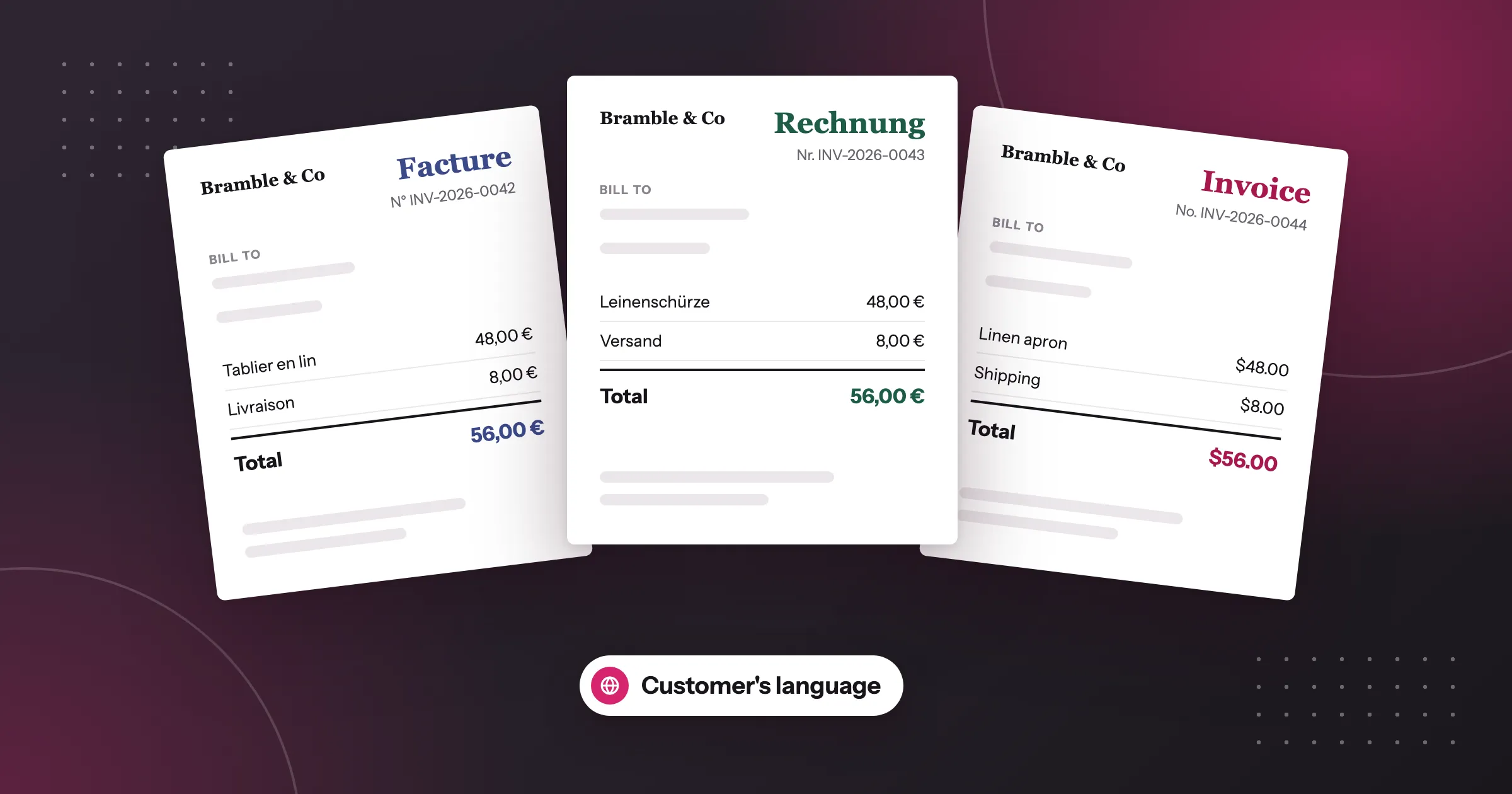
If you sell in several languages, your customers shop in French, German or Japanese, and then get an invoice in English. The usual fix is a copy of every template for every language, and picking the right one for each order. In Foliant you don’t need that: set a template’s language to Customer’s language, and each document prints in the language the customer shopped in, from the same template.
What follows the customer’s language
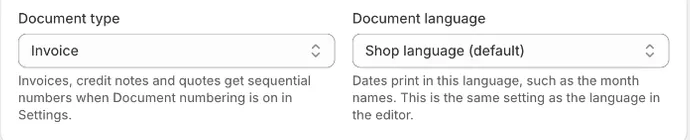
Every template has a Document language. It decides two things:
- Dates, such as month and day names. “January” prints as “Januar” on a German document.
- Foliant’s own wording, such as “Invoice”, “Subtotal” or “Ship to”. The wording in Foliant’s ready-made templates and in the visual editor’s blocks follows the document’s language.
Text you wrote yourself stays as you wrote it. If you want your own notes in more than one language, see the section on your own text below.
If Foliant can’t tell the customer’s language, or doesn’t have it, the document prints in your store’s language.
The language options
You can choose from three kinds of Document language:
- Shop language (default): every document prints in your store’s language.
- Customer’s language: each document prints in the language the customer shopped in.
- A specific language, such as French or Japanese: documents always print in that language.
Foliant offers 38 languages, including Arabic, Hebrew, Persian and Urdu, which print right to left.
Turn it on for several templates at once
- Go to Templates.
- Under Pick the right template automatically, find Print in the customer’s language and click Set up (or Edit if it’s already on).
- Tick the templates that should print in the customer’s language, for example your invoice and your packing slip.
- Click Save.
To change one template, open its settings and choose the Document language under Details. It’s the same setting as the language in the editor’s top row, and the preview follows it straight away.
Nothing changes when you print. Tick the template on the print page as usual, and each order prints in its customer’s language. The same goes for PDFs your customers download from a link or get by email: every kind of delivery makes the same document.
Two languages on one document
Some stores want both languages on the page, for example “Rechnung / Invoice”. In the editor’s top row, choose a Second language. It can be a fixed language or Customer’s language. In a code template, the t_both filter then prints Foliant’s wording in both. When the two languages are the same, it prints one.
Money and numbers
The Number format in the editor decides how money and numbers look. Store money format keeps your store’s format on every document. Document language’s format follows the document’s language, so a German document shows 1.234,56 €.
Your own text in several languages
In a visual template, the Text and Legal footer blocks with your own text, and a Header’s custom line, can hold a translation per language. Select the block, open Content, choose a Language and type the text for it. The translation prints when the document is in that language; otherwise the default text prints.
In a code template, the t filter prints Foliant’s wording in the document’s language, so {{ 'subtotal' | t }} prints “Subtotal”, “Zwischensumme” or “Sous-total”. Wording keys from Shopify Order Printer work too, so imported templates keep their translations.
Good to know
- Pick lists, manifests and other templates that make one document for all selected orders can’t use Customer’s language: one document covers many customers.
- When you create a template from a built-in code template, you choose a Language during setup, and its wording is translated into it.
- Templates made from a design have their own language setting in the design editor.
- Draft orders don’t carry a customer’s language, so a quote for a draft order prints in your store’s language.
The full steps are in the help centre: Print in your customer’s language.
Questions
Can Shopify invoices print in the customer's language?
Yes. Set a template's Document language to Customer's language in Foliant, and each document prints in the language the customer shopped in, from the same template.
What happens if Foliant doesn't have the customer's language?
The document prints in your store's language. The same happens when Foliant can't tell which language the customer shopped in.
Does my own text get translated?
No, text you wrote yourself stays as you wrote it. In a visual template, the Text and Legal footer blocks and a Header's custom line can hold a translation you type for each language.
Can one invoice show two languages?
Yes. Choose a Second language in the editor's top row. In a code template, the t_both filter then prints Foliant's wording in both, for example "Rechnung / Invoice".
Try Foliant free on your store.
Find it on the Shopify App Store