Guides
Moving from Order Printer to Foliant
· 2 min read
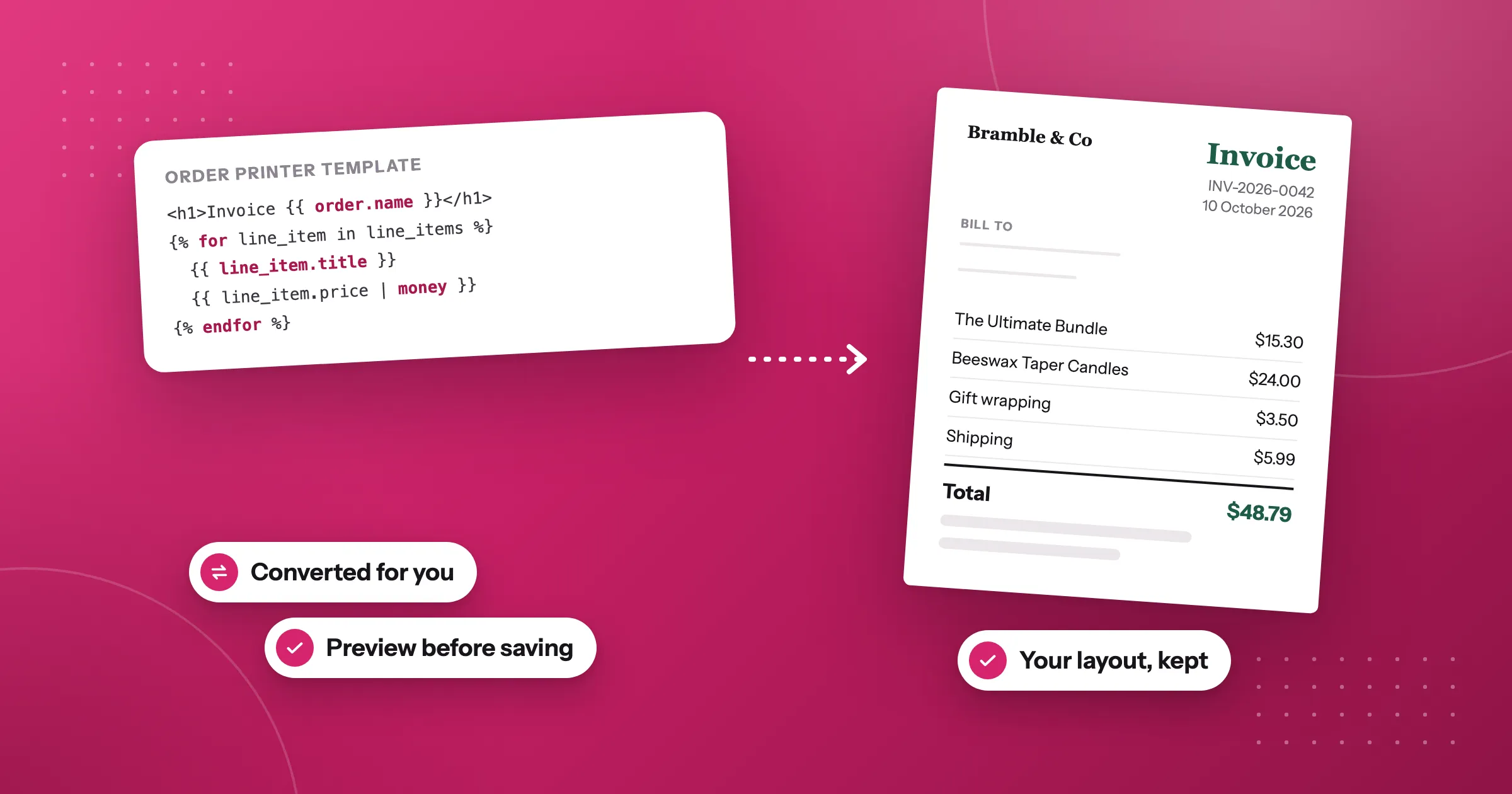
If you print invoices and packing slips with Shopify Order Printer or Order Printer Pro, you don’t have to start again in Foliant. You can bring each template across, see exactly what Foliant changed, and keep printing documents that look the way they did.
What the import does
Foliant reads your template’s Liquid and converts the variables that differ between the two apps. Before you save anything, it shows you a report and a preview of the document with a sample order:
- Changed: variables Foliant renamed to their Foliant equivalent.
- Removed: storefront tags and filters that documents can’t use.
- Needs attention: anything Foliant couldn’t map, with the line number in your template.
- Layout: things like a page break at the end, which documents don’t need because each one starts on a new page anyway.
An import always creates a new template. It never overwrites one you already have.
Import a template
-
Copy the template’s code from Order Printer, or save it as a file.
-
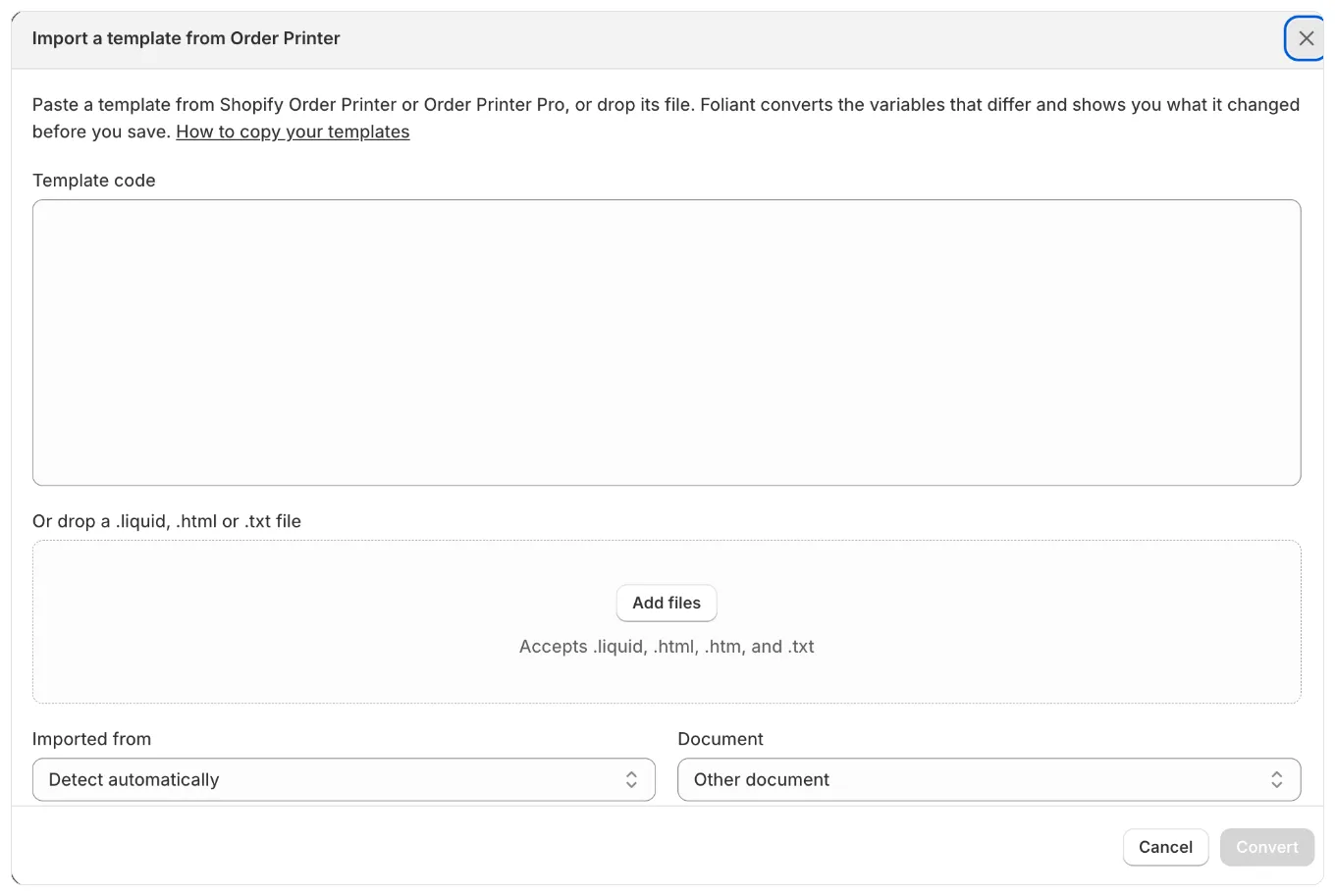
In Foliant, go to Templates and click Import a template.
-
Paste the code, or drop a
.liquid,.htmlor.txtfile. -
Leave Imported from on Detect automatically, or pick the app it came from.
-
If it’s an invoice, credit note or quote, choose that under Document, so Foliant numbers it.
-
Click Convert, read the report, then click Create template.
The new template’s settings open next, so you can choose which orders it’s pre-selected for.
After the import
Open the template’s editor to fix anything the report flagged. Foliant keeps the imported version in the template’s version history, so you can always go back to it.
From there you can keep the template exactly as it was, or start using what Foliant adds: your logo and colours across every template, sequential invoice numbers, and PDFs your customers can download from Shopify’s own emails.
The full steps, with every message the import can show, are in the help centre: Import a template from Order Printer.
Questions
Can I import my Order Printer templates into Foliant?
Yes. In Foliant, go to Templates, click Import a template, and paste the code or drop a .liquid, .html or .txt file. Foliant converts the variables that differ and shows a report and a preview before you save.
Does it work with Order Printer Pro templates?
Yes. The import takes templates from Shopify Order Printer and Order Printer Pro. Leave Imported from on Detect automatically, or pick the app it came from.
Does an import overwrite one of my templates?
No. An import always creates a new template. It never overwrites one you already have.
What if Foliant can't convert part of my template?
The report lists it under Needs attention, with the line number in your template. Open the template's editor to fix it; Foliant keeps the imported version in the template's version history.
Try Foliant free on your store.
Find it on the Shopify App Store