Invoicing & tax
OSS and IOSS on Shopify invoices: what to show and how
· 3 min read
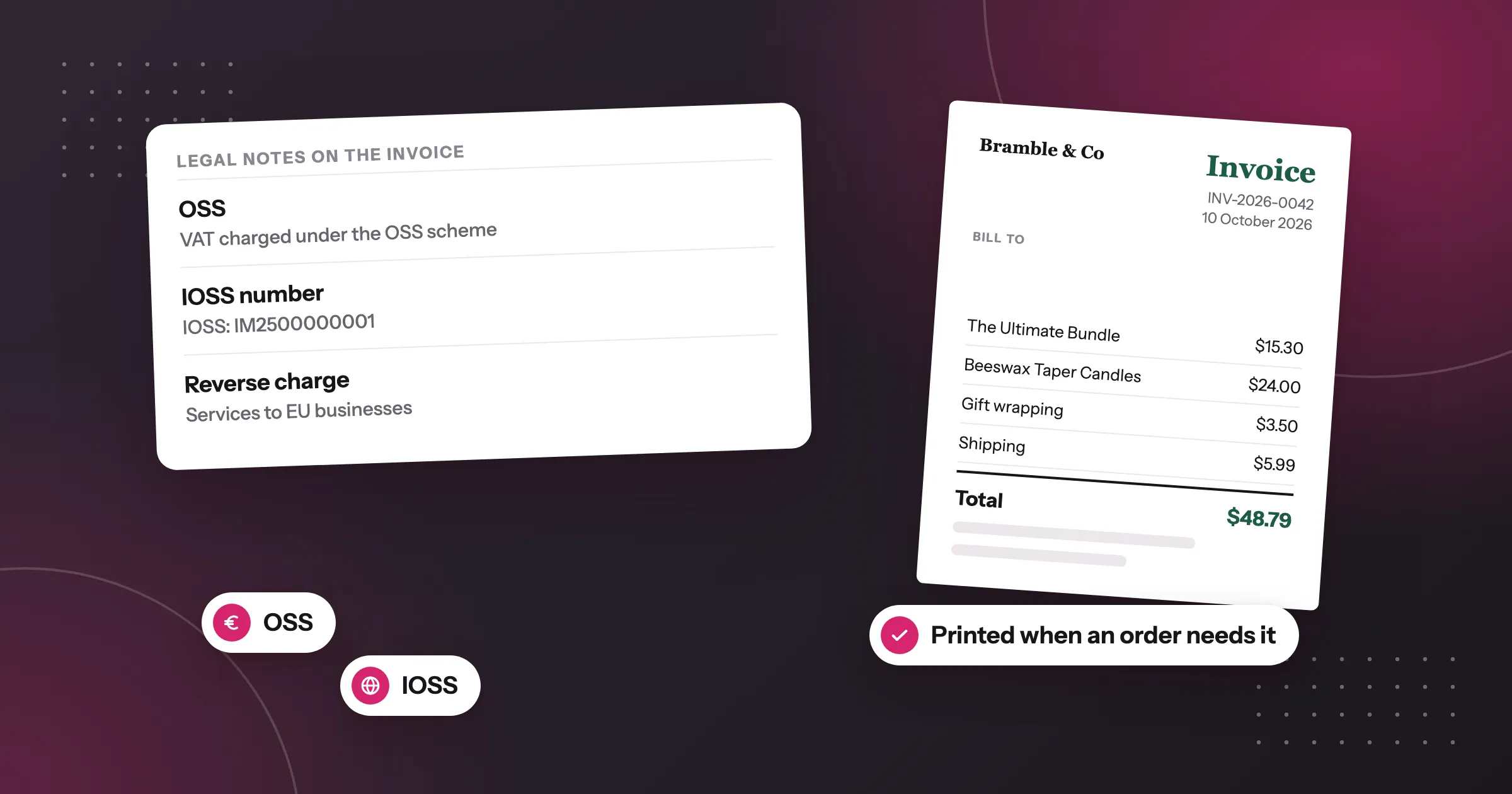
You sell to consumers across the EU and declare the VAT through OSS, or you ship low-value parcels into the EU and collect the VAT at checkout through IOSS. Your invoices should make that clear: your IOSS number on imported orders, a note on OSS sales. In Foliant you add your IOSS number and OSS registration once, and invoices print the right note on the orders that need it.
This post is general information, not legal or tax advice.
What OSS and IOSS are
Both are EU schemes that let you declare the VAT on sales to consumers in many EU countries through one registration, instead of registering in each country.
- OSS (One-Stop Shop) is for sales from an EU business to consumers in other EU countries. Above the EU-wide threshold, you usually charge the VAT rate of your customer’s country, and declare it through one return in your own country.
- IOSS (Import One-Stop Shop) is for goods sent into the EU from outside it, in consignments worth €150 or less. You charge the customer’s VAT at checkout, so the parcel isn’t held for VAT when it arrives. Your IOSS number starts with
IM, and sellers outside the EU may need an intermediary to register.
Neither scheme covers sales to businesses with a valid VAT number: those usually follow the reverse charge rules instead.
Your IOSS number also has to reach customs with the parcel, usually through your carrier, so ask your carrier how they want it. Registration and invoice details vary, so check with your accountant how these schemes apply to you.
How to do it in Foliant
- Go to Settings › Tax & legal.
- If you use IOSS, enter your number in IOSS number, in the VAT numbers and EORI section. It’s
IMfollowed by 10 digits. - If you’re registered for OSS, tick Registered for OSS in the same section.
- Click Save.
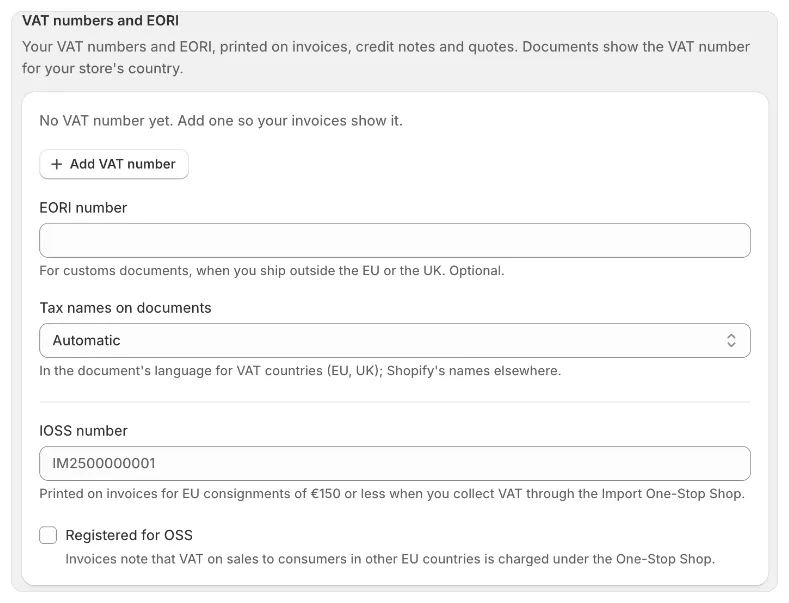
If the IOSS number isn’t in the right format, Foliant tells you: “Enter an IOSS number: IM followed by 10 digits.”
The notes themselves are in Legal notes, on the same page. IOSS number and OSS are on until you turn them off, and Customize wording lets you change their text in each language. Foliant’s built-in invoice and credit note templates print them; in your own templates, add the Legal notes block.
When each note prints
Foliant decides order by order:
- IOSS number prints when the order has goods shipped to an EU country (Northern Ireland included) worth €150 or less, not counting shipping. Foliant converts the amount to euros at the European Central Bank’s exchange rate.
- OSS prints when VAT was charged on a sale to a consumer in an EU country other than yours. It doesn’t print when the buyer has a valid VAT number.
Neither note prints when a marketplace collected the tax on the order.
Good to know
- Foliant prints the VAT that Shopify charged. Whether your customer’s country’s rate is charged depends on your tax settings in Shopify.
- You can save your IOSS number and OSS registration on every plan. The notes they print depend on your plan. See pricing.
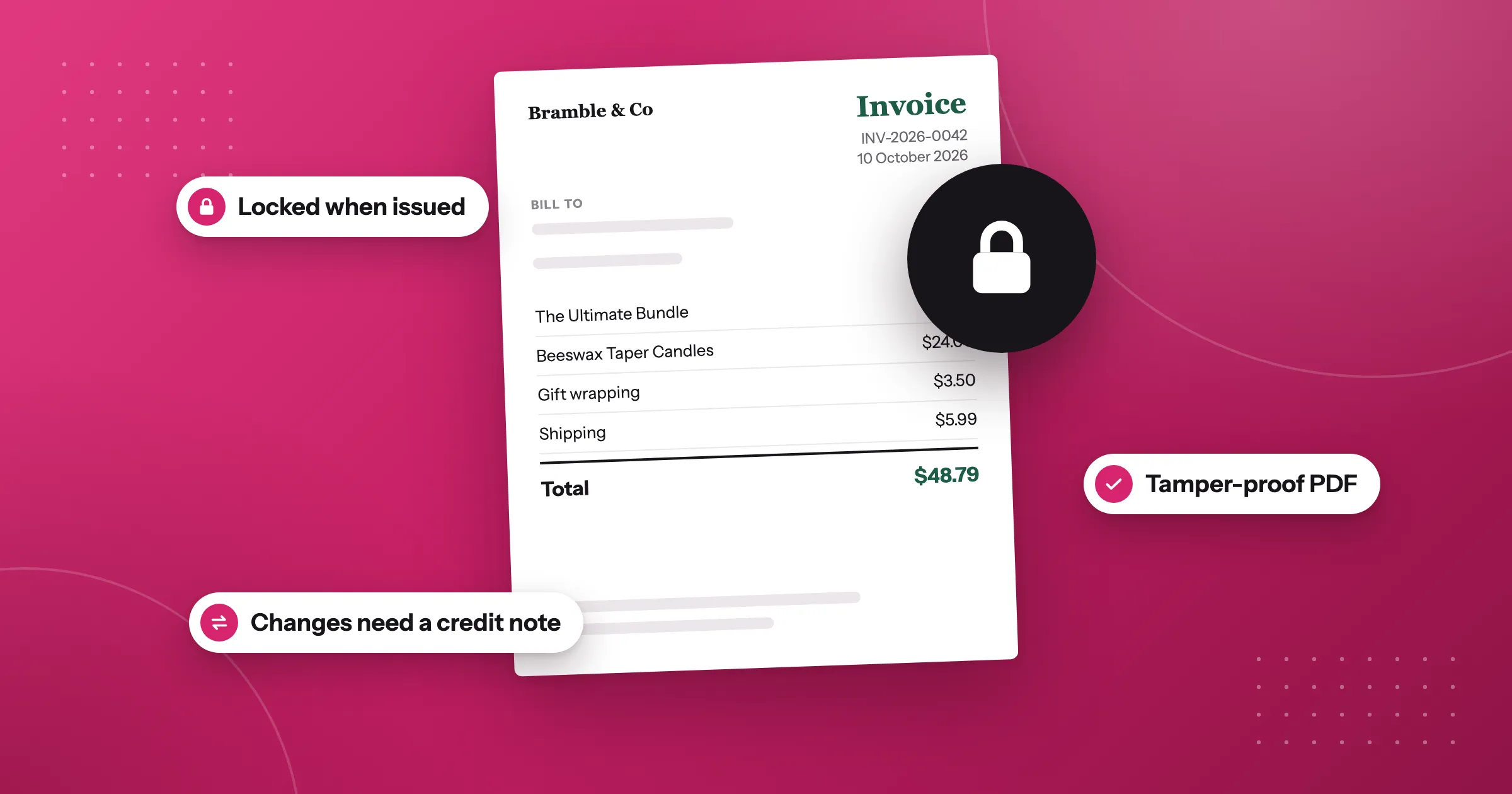
- If you lock issued invoices, a locked invoice keeps the notes it printed when it was issued.
The full steps are in the help centre: IOSS and OSS.
Questions
Where do I add my IOSS number in Foliant?
Go to Settings › Tax & legal and enter it in IOSS number, in the VAT numbers and EORI section, then click Save. It's IM followed by 10 digits.
When does the IOSS number print on an invoice?
When the order has goods shipped to an EU country (Northern Ireland included) worth €150 or less, not counting shipping. Foliant converts the amount to euros at the European Central Bank's exchange rate.
When does the OSS note print on an invoice?
When VAT was charged on a sale to a consumer in an EU country other than yours. It doesn't print when the buyer has a valid VAT number, or when a marketplace collected the tax on the order.
Can I change the wording of the IOSS and OSS notes?
Yes. In Legal notes, on the same settings page, Customize wording lets you change their text in each language.
Try Foliant free on your store.
Find it on the Shopify App Store